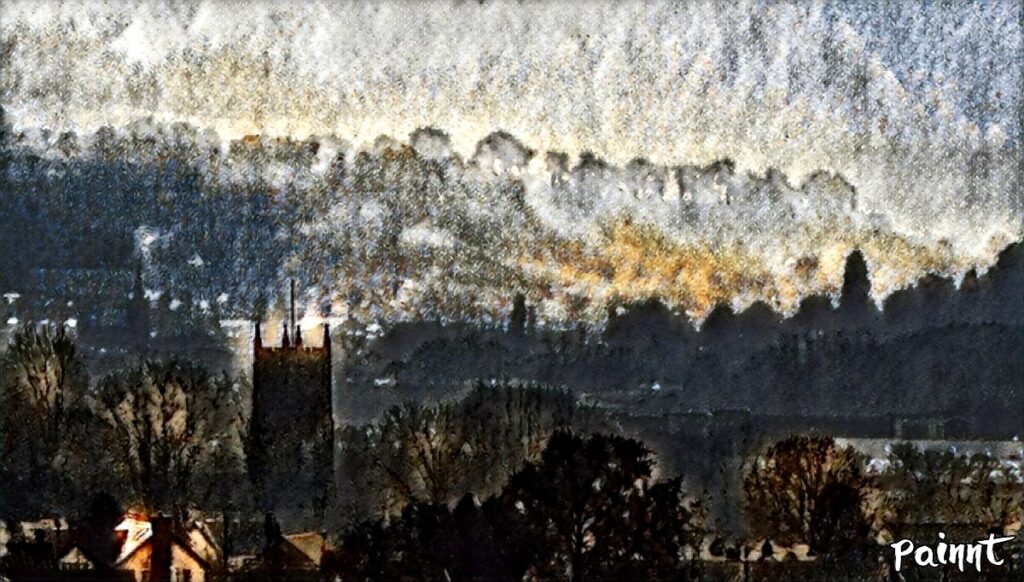
I have always been fascinated by the idea of turning ordinary photographs into works of art, inspired initially by an artist who required a website and showed me their original and digital painting Giclee prints. Over the years, I have explored several digital tools, and Fotosketcher for Windows OS quickly became my go-to application. Even today, I continue to use it because of its intuitive interface and the variety of artistic styles it offers.
In this blog, I will share my experiences with Fotosketcher, my recent experimentation with Painnt on Android, and how different images respond to different painting and sketching styles. Throughout the article, I will also include original photos alongside the renderings created in both Fotosketcher and Painnt, so you can see the transformations for yourself.
Exploring Fotosketcher: A Classic Tool
Fotosketcher allows users to take digital photos and render them into various painting and sketching styles, ranging from pencil sketches and watercolor effects to oil paintings and impressionist styles. One of the fascinating aspects of this software is that different images render differently depending on the style applied. For example, a landscape photo may look stunning as a watercolor painting, while a portrait may work best as a pencil sketch.
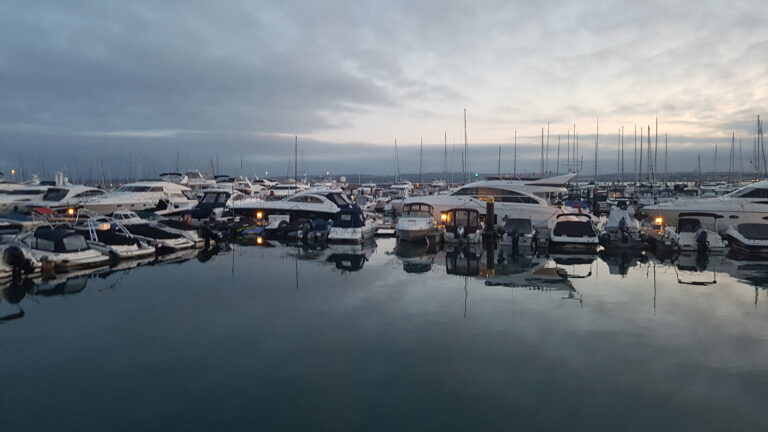
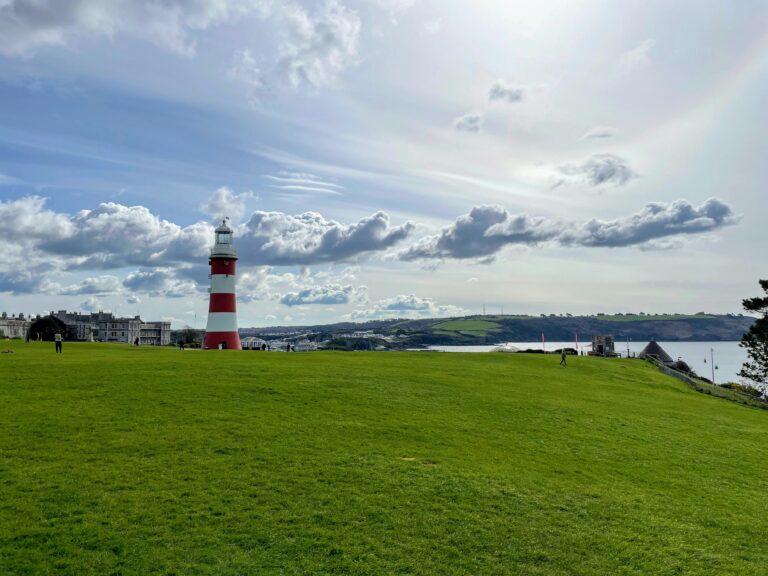
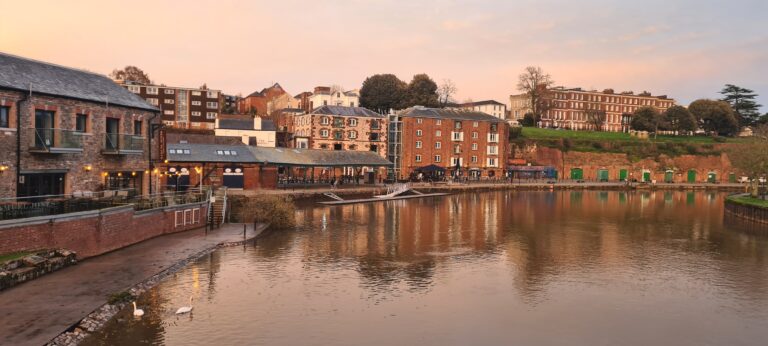
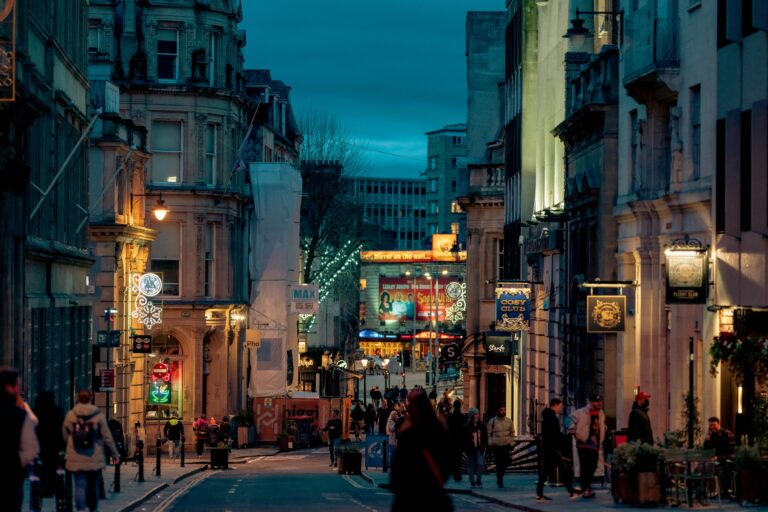
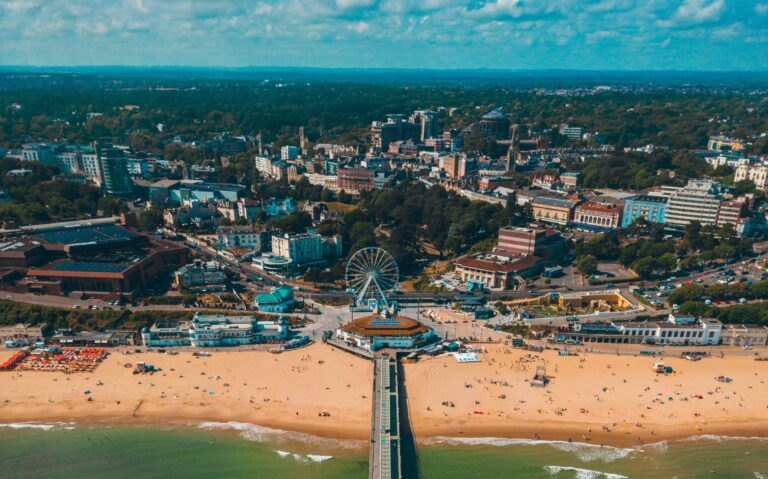
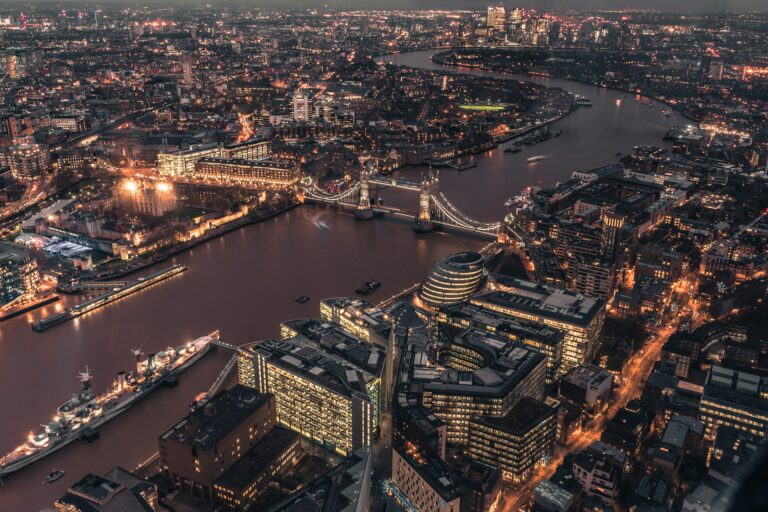
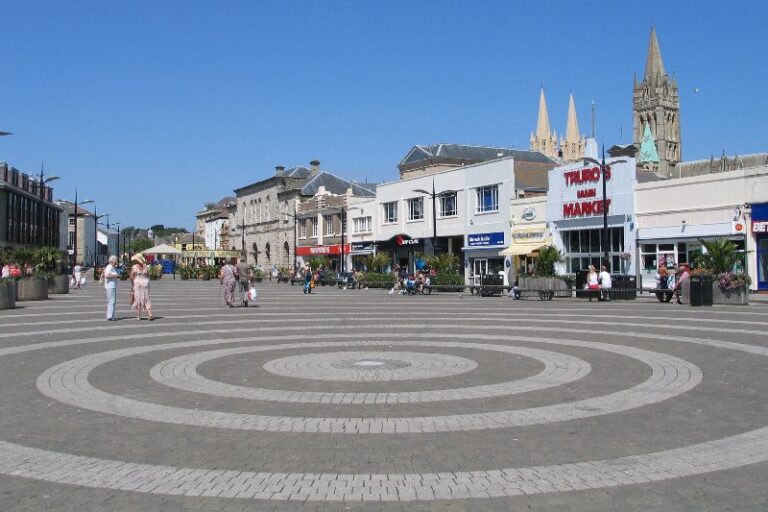
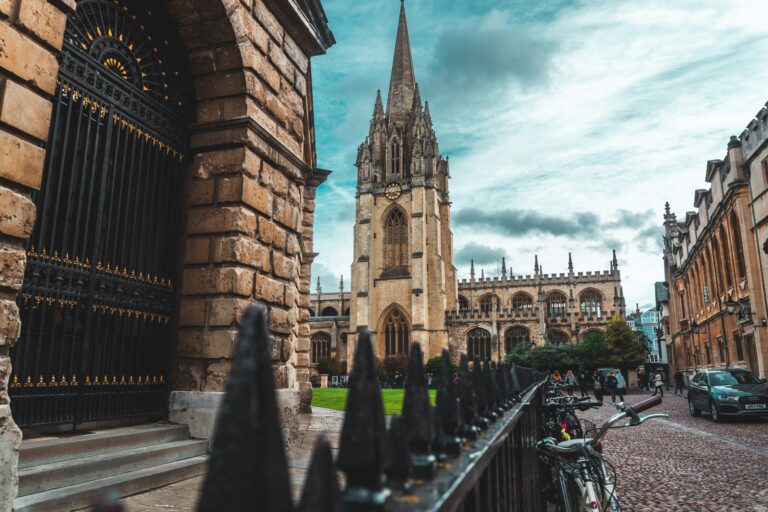
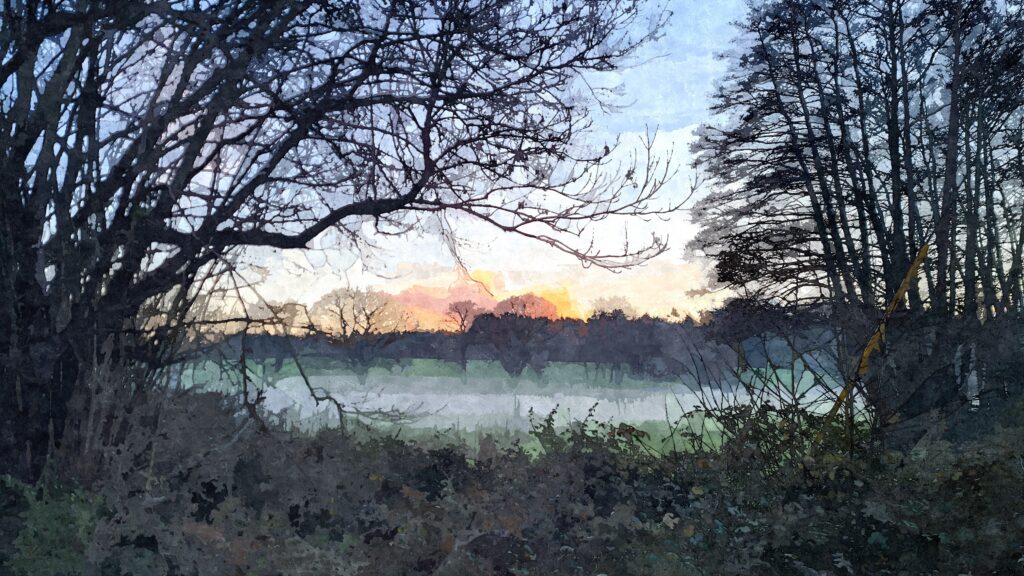
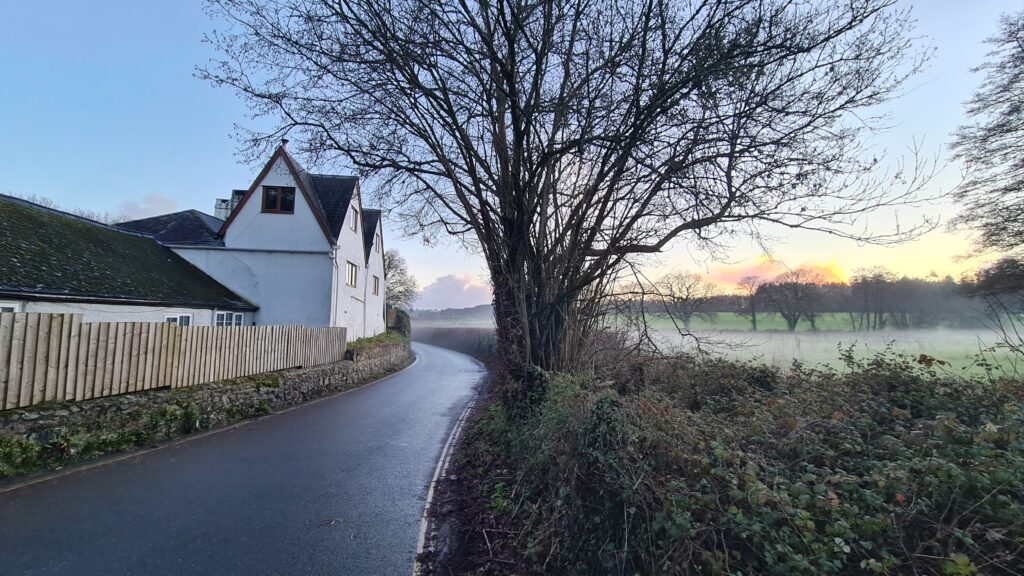
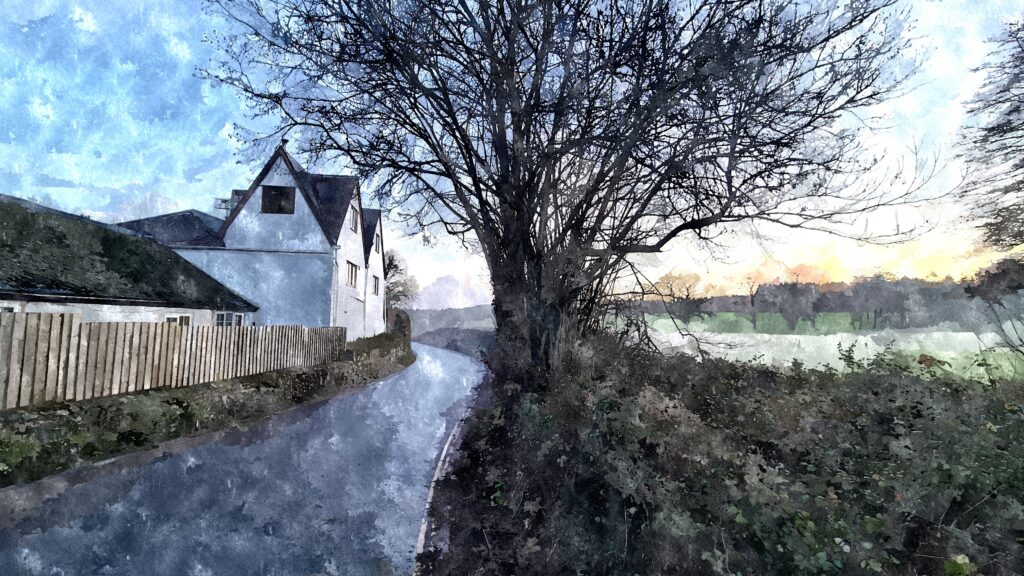
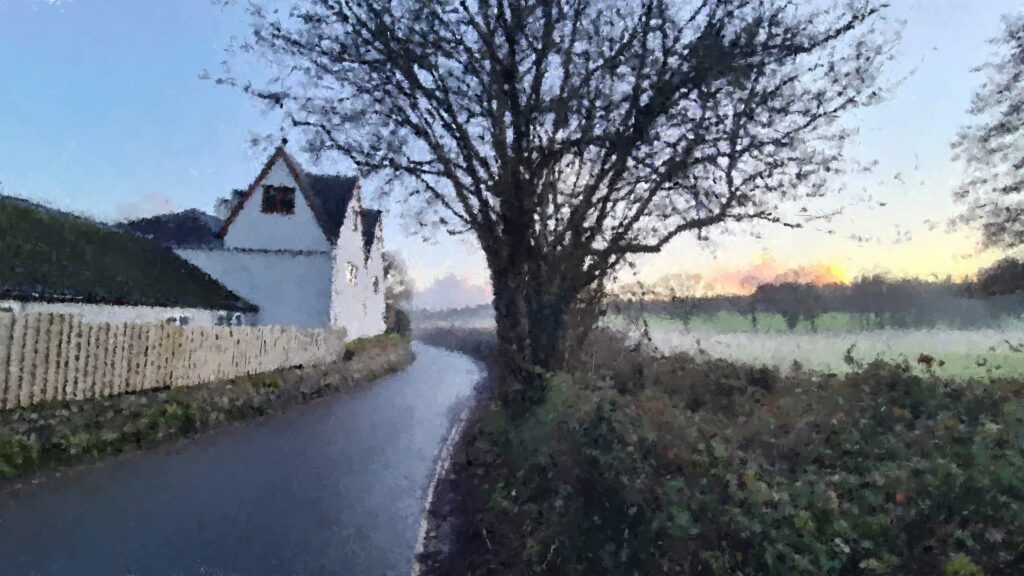
In examples below, you will find the original images followed by their Fotosketcher renderings, demonstrating how the software can change the mood and tone of a photograph. These images serve as a visual guide for anyone considering which styles work best for specific types of photos. Some work well, some not so much. I have left a few options here so you can make your own mind up.
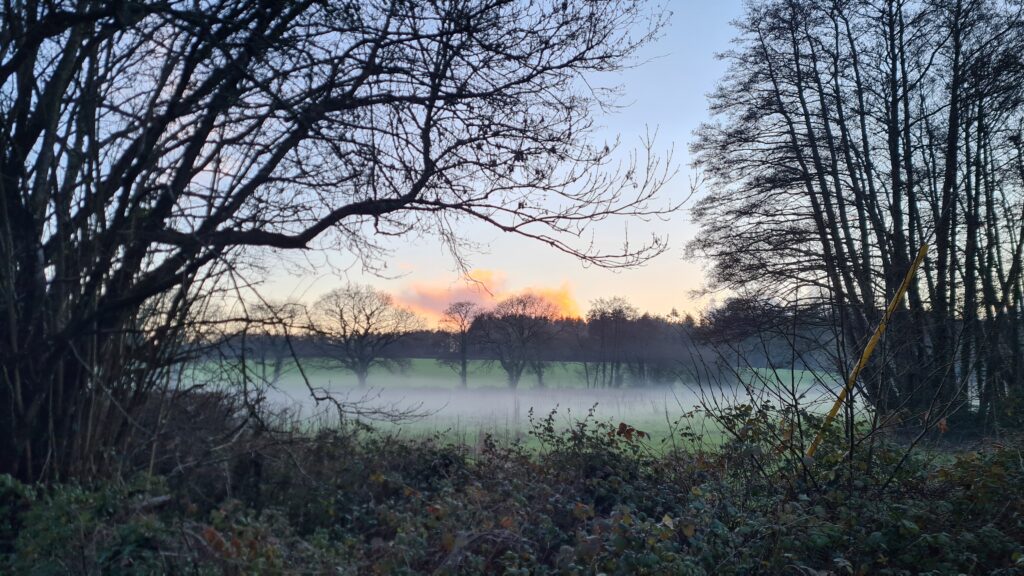
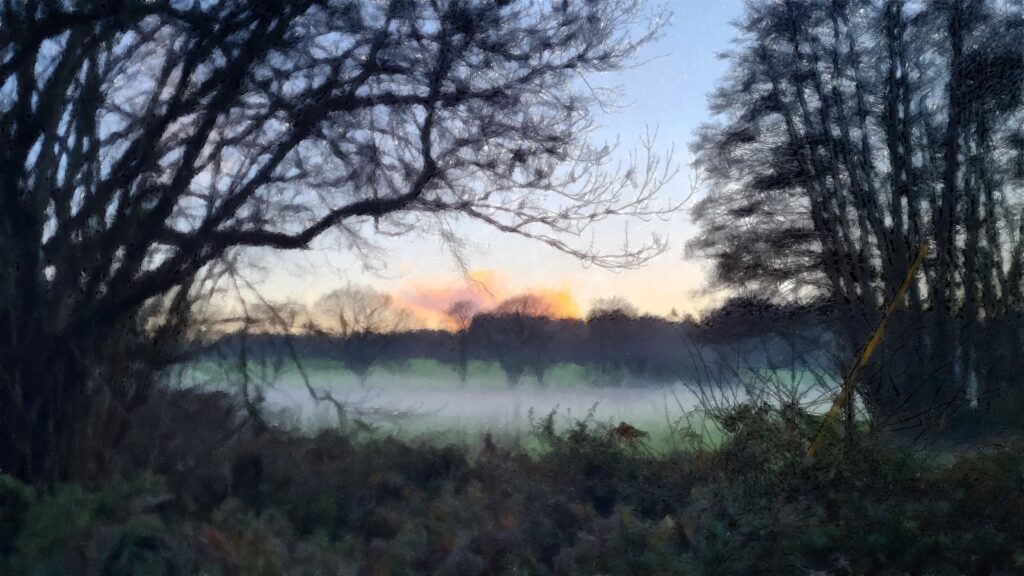
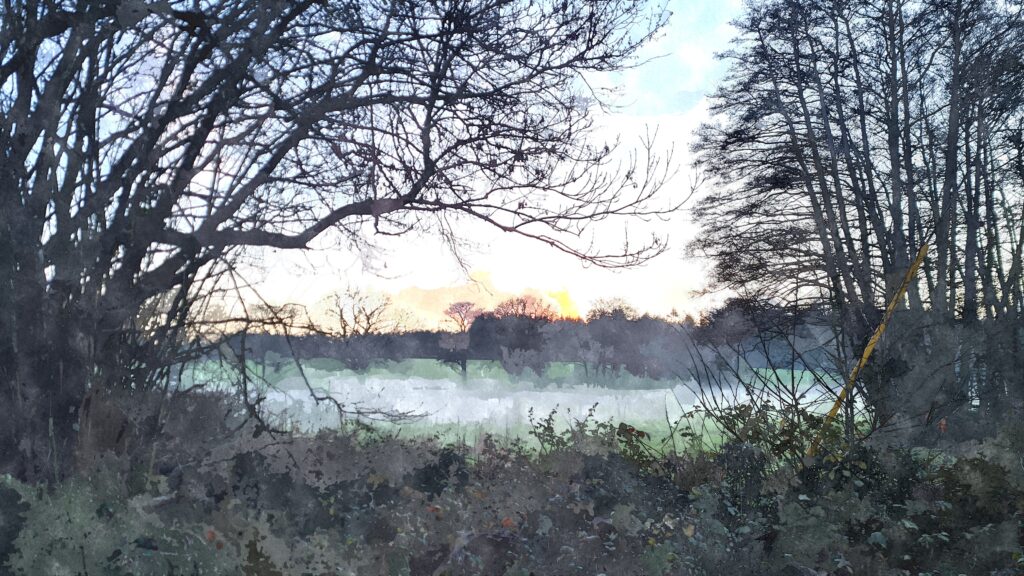
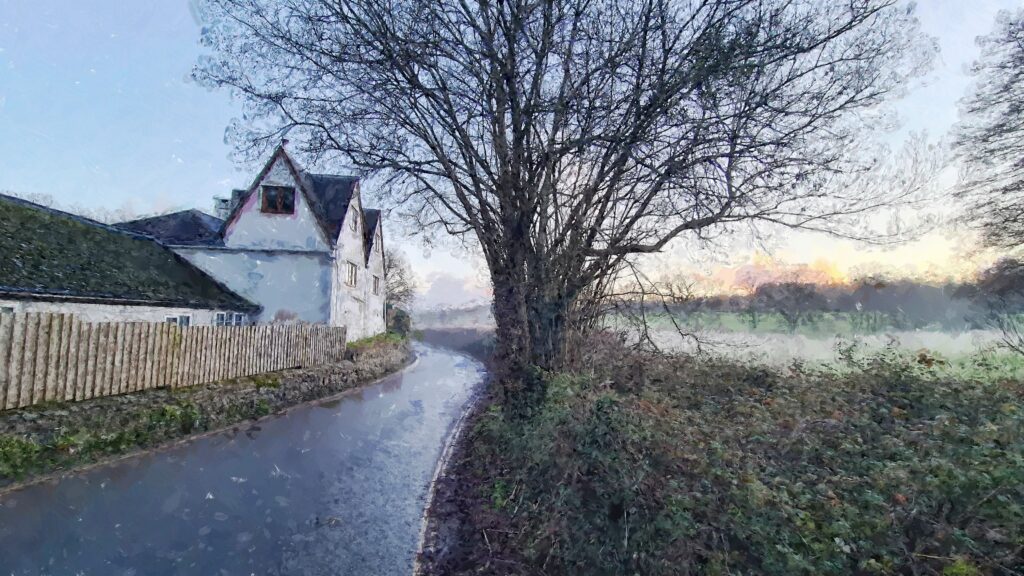
Searching for Alternatives: Why I Tried Painnt
Recently, I noticed that Fotosketcher hasn’t been actively supported or updated. Concerned about future compatibility and exploring new creative possibilities, I decided to try Painnt on Android. Painnt impressed me with its versatility and the quality of its atmospheric renderings.
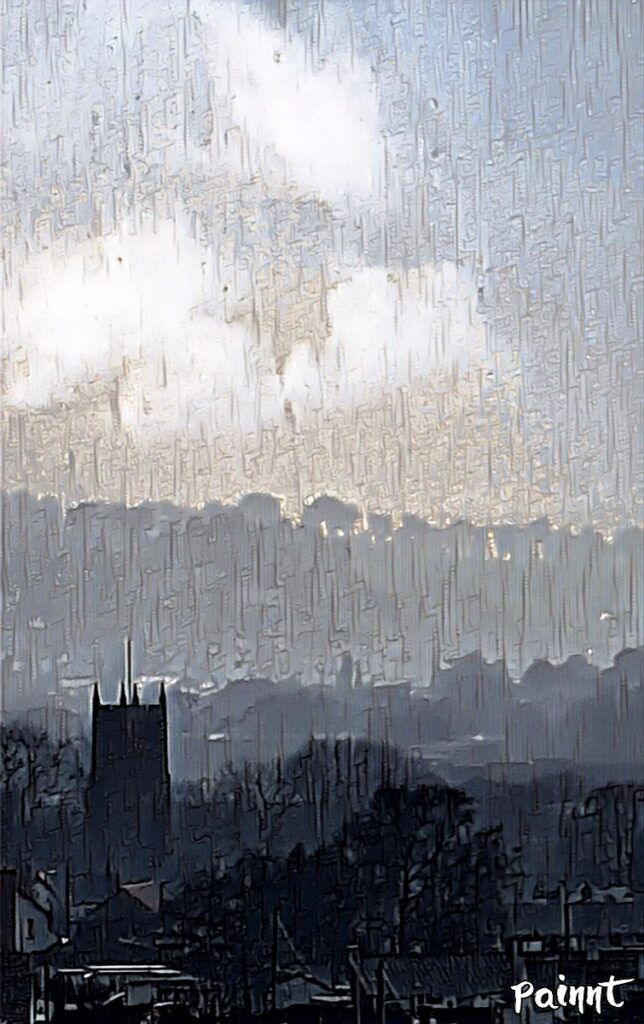
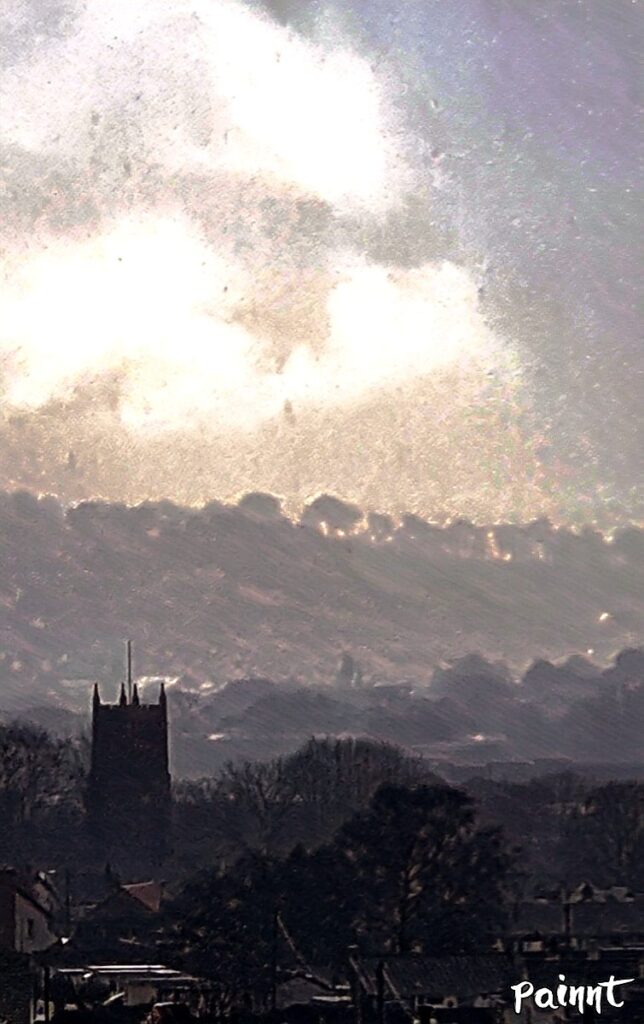
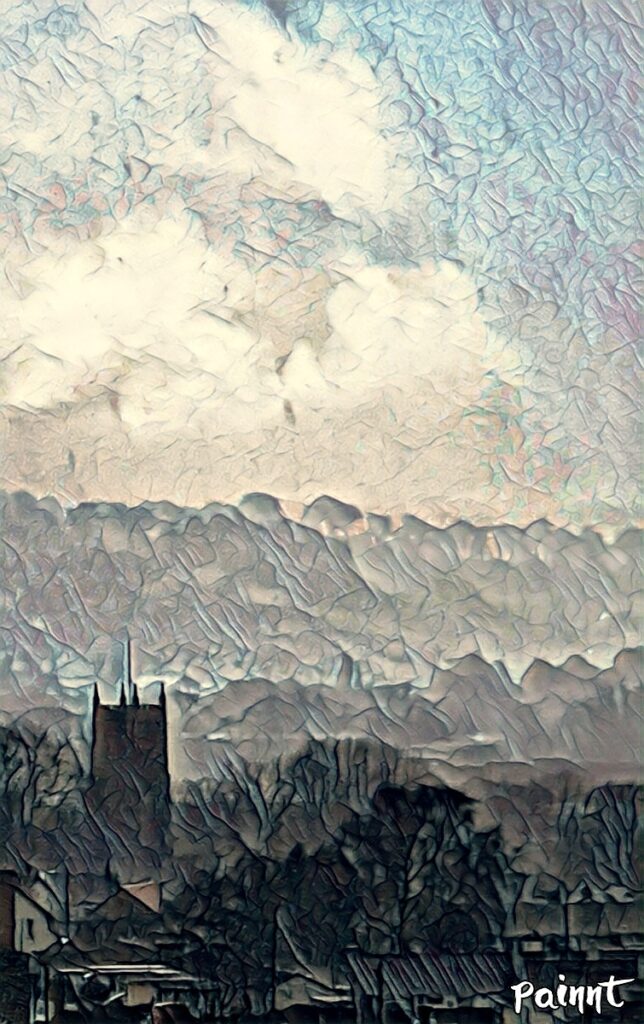
Painnt offers hundreds of filters, including classical, comic, and modern art styles. What struck me most was how it could create more nuanced textures and depth, particularly in photos with intricate lighting or detailed backgrounds. In this blog and on the link at the bottom, I will include examples comparing the original photo, its Fotosketcher version, and the Painnt version, so readers can judge which approach they prefer.
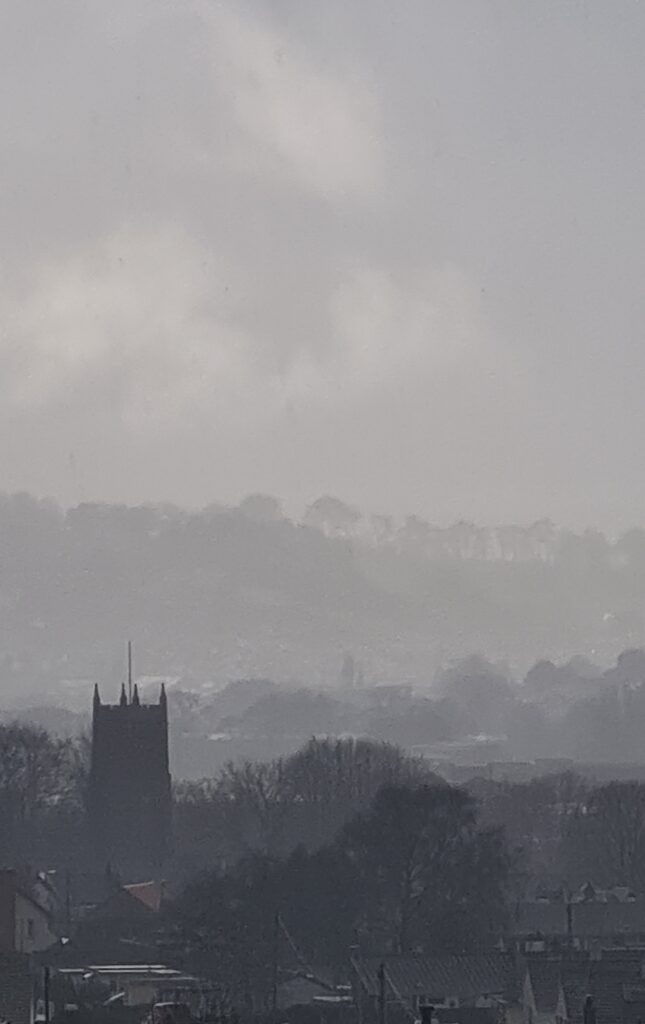
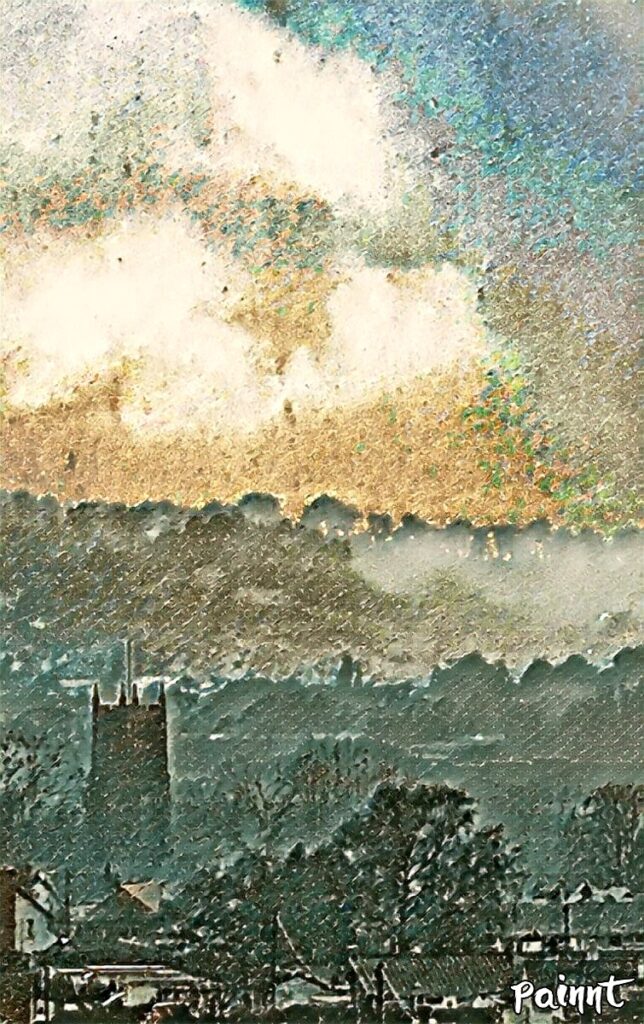
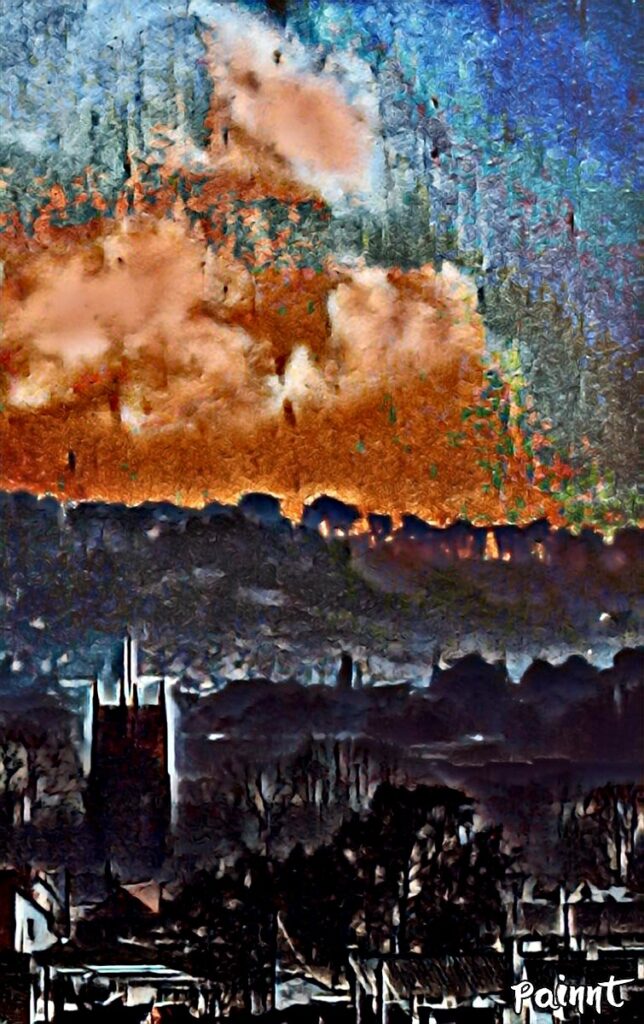
Comparing the Results
When I compare the results side by side, I notice that Fotosketcher tends to produce sharper, more defined brush strokes, giving a traditional artistic feel. Painnt, on the other hand, often creates softer, more atmospheric effects, which can completely transform the mood of the original image. Both tools have their merits, and I enjoy using them together depending on the style I want to achieve.
Conclusion
Digital photo-to-art applications like Fotosketcher and Painnt provide a fun and creative way to reimagine your photographs as paintings or sketches. Whether you prefer the classic, well-defined style of Fotosketcher or the versatile, atmospheric effects of Painnt, experimenting with these tools can unlock a new level of artistic expression.
Be sure to look through the gallery examples in the link below to see my original images fading through to the Fotosketcher and Painnt renderings – it’s fascinating to see how different styles can completely transform the visual and feeling of the same photo.